
How to make a countdown with your own photos
Give a countdown your own photograph, check its text and choose an event-based widget. Keep the original photo while making a card that is easy to read.
Published · Checked
A photograph can make a countdown feel like a place, person or occasion rather than a bare number. In Soon & Then, you choose the photograph yourself. The app imports a copy for the moment, so you are not signing up to a shared photo feed or cloud account.
Choose a photograph that suits a card
Pick an image you own or are allowed to use. A landscape with a quiet area around the text is often easier to read than a busy close-up. Think about where the card will appear: a photo that works in a wide app card may need a different position on a square widget.
Photographs of other people deserve care. A home screen can be visible to someone borrowing your phone, and sharing a rendered card sends that image to the destination you choose.
Add the photo to your moment
- Open a saved moment, tap Edit and select Appearance.
- Choose Photo, then Choose photograph or Change photograph.
- Select an image with Android’s photo picker.
- Inspect the Live preview and open Crop & position if the subject is poorly placed.
- Return to the editor and tap Save.
Choosing a file is not the same as saving the event. Check the finished moment after leaving the editor, particularly if you changed both its picture and date.
Make the words readable
Use the picture’s darker or quieter area behind the count. If necessary, adjust the overlay darkness or move the text to the top rather than the bottom. The aim is a readable card, not the strongest possible effect. Keep the number legible before you worry about showing every detail in the picture.
The app keeps the imported original while saving presentation settings separately. Moving or zooming the card’s photograph does not edit the original in your phone’s gallery.
Carry the photograph onto a widget
When configuring the widget, choose Event appearance to use the moment’s photograph and saved presentation. Light and Dark are plain backgrounds, so choosing either intentionally removes the photo from that widget’s display.
Add it using the home-screen widget steps, then inspect the real shape on your launcher. If a tight crop hides the subject, resize the widget or adjust the event’s photograph. Do not expect one crop to reveal exactly the same area in every shape.
Read the real editor before finishing
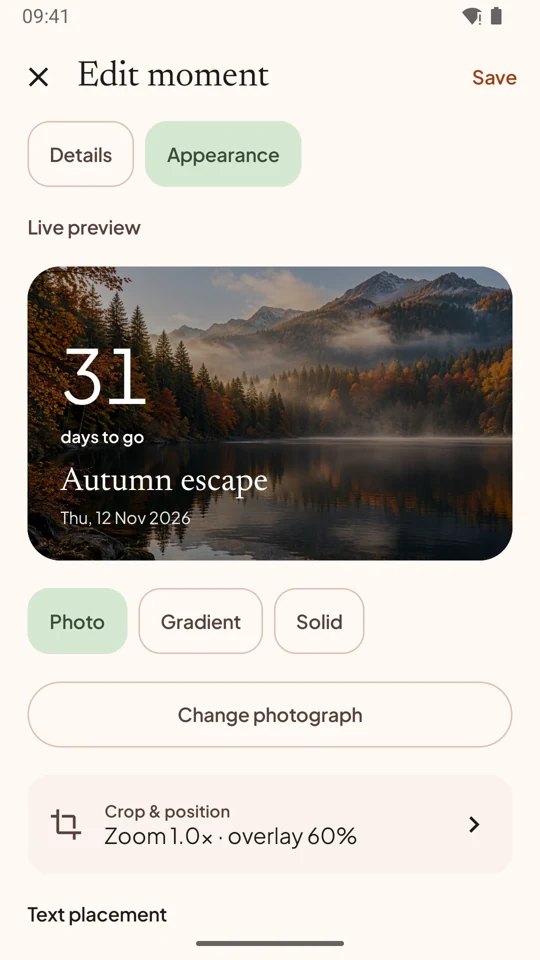
There are two completion steps worth distinguishing: Crop & position returns with Done, and the event editor saves with Save. If the preview looked right but the reopened moment did not change, check whether you completed the second step. Do not repeatedly import the same picture as the first remedy.
A practical composition test needs no new or private photograph. Look at the existing moment in a wide card, open its detail, then place its Event-appearance widget. Note where the subject and count fall in each view. Check the subject and text together instead of treating the editor preview as proof that every widget shape will look identical.
Four checks before displaying or sharing
- Can the count be read without recognising the picture’s subject?
- Does the crop still work when the widget becomes a strip or square?
- Would the title, date and photo reveal more together than you intend?
- Does the reopened event show the saved result, rather than just the editor preview?
A portrait can be meaningful without filling the entire card. Leave space where text has to sit, or use a plain widget while retaining the photo inside the app. Imported photographs remain local to the reviewed app, but an image shared through Android creates a separate copy at the selected destination.
For a sensitive event, a nickname and gradient may do the job better than a recognisable face. Our privacy and backup explanation covers the boundaries of shared images and unencrypted exports; a prettier crop does not change those boundaries.
We’re getting Soon & Then ready for its first Android testers.
Join the Android betaSources
- Soon & Then for Android · checked 2026-10-13